
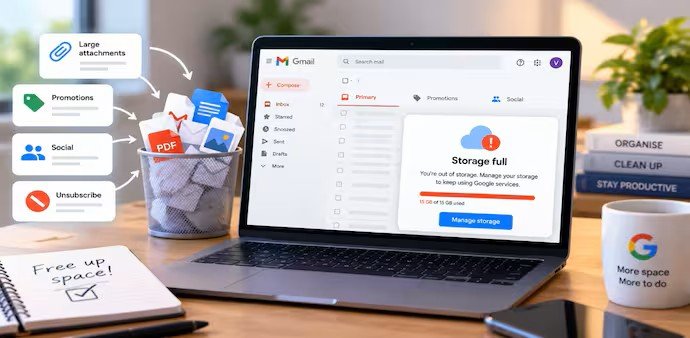

A nearly full Gmail account does not always mean you have too many emails.
Large attachments, old conversations, promotional messages and forgotten files can quietly consume your available storage.
Before paying for additional storage, a few simple Gmail cleanup steps can help recover significant space.
1. Find and Delete Large Emails
Large attachments are often among the biggest storage users.
Open Gmail and enter this search command:
has:attachment larger:10M
Gmail will show emails containing attachments larger than 10MB.
These may include old PDFs, photos, videos, reports and scanned documents.
You can increase or decrease the size limit to find larger or smaller attachments.
Deleting a few large emails can free more space than deleting hundreds of ordinary messages.
2. Remove Old Promotional Emails
Promotional emails can accumulate for years.
To find promotions older than one year, search:
category:promotions older_than:1y
Select the emails you no longer need.
Then choose Select all conversations that match this search and delete them.
This can remove hundreds or thousands of unwanted messages at once.
3. Clean Up Social Messages
The same method works for Gmail’s Social category.
Search:
category:social older_than:1y
Review the results before deleting them.
Removing years of unnecessary social notifications can quickly reduce the number of stored messages.
4. Unsubscribe From Unwanted Emails
Deleting old promotional messages will not stop new ones from arriving.
While cleaning your inbox, unsubscribe from newsletters and marketing emails you no longer read.
Gmail may show an Unsubscribe option next to the sender’s name.
You can also find an unsubscribe link near the bottom of many promotional emails.
This prevents unnecessary messages from rebuilding your storage over time.
5. Search for Specific File Types
Gmail can also help you locate emails containing particular types of attachments.
Try searches such as:
filename:pdffilename:zipfilename:pptfilename:mp4
These searches can reveal old documents, presentations, compressed folders and videos.
If you have already saved a file elsewhere and no longer need the email, deleting the message can recover storage.
6. Empty Trash and Spam
Deleting an email does not necessarily free the storage immediately.
Deleted emails remain in Trash for up to 30 days unless you permanently remove them.
Spam messages can also continue occupying storage until they are automatically removed or manually deleted.
After completing your cleanup, open Trash and select Empty Trash now.
Then open Spam and choose Delete all spam messages now.
This makes the recovered storage available without waiting for automatic deletion.
7. Change Your Gmail Habits
Regular cleanup can prevent your storage from filling up again.
Use your main email address primarily for important communication, such as work, banking and personal messages.
Avoid using it for every shopping website, newsletter, discount offer or online download.
You can also delete emails containing large attachments after saving the files somewhere else.
Cleaning the Promotions folder every few weeks can prevent years of marketing emails from accumulating.
Unsubscribing from emails you rarely open can reduce future clutter as well.
Check Before Buying More Storage
A Gmail storage warning does not always mean you need a larger storage plan.
Start by identifying what is actually consuming your space.
Delete large attachments, clear old promotional and social emails, remove unnecessary files, empty Trash and Spam, and unsubscribe from unwanted senders.
These simple steps can recover storage and help keep your Gmail account manageable without immediately paying for additional storage.