
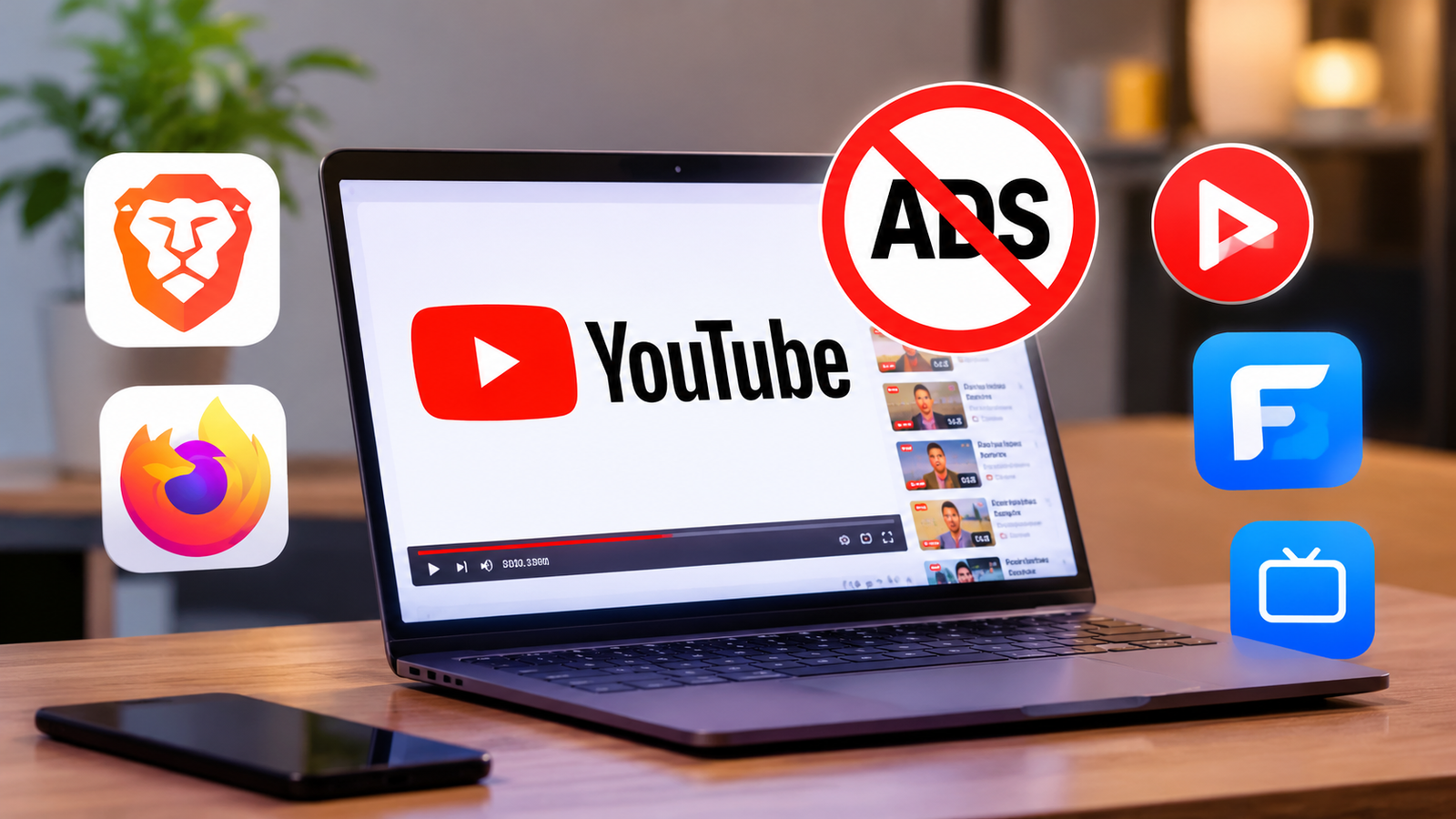

Watching YouTube without constant advertisements does not necessarily require a paid Premium subscription. Several free browsers and alternative applications offer ways to enjoy videos with fewer interruptions.
Options such as Brave and Firefox can block many advertisements through built-in features or extensions. Meanwhile, applications like NewPipe and FreeTube provide dedicated video-watching experiences without regular YouTube ads.
Smart TV owners also have alternatives, including TizenTube and SmartTube. These applications support compatible television platforms and offer additional playback features.
Depending on the device, users can choose from different methods across Android phones, iPhones, tablets, Windows PCs, Macs, Linux computers and smart TVs.
Here are six ways to watch YouTube without Premium.
1. Use Brave Browser to Block YouTube Ads
Brave offers one of the simplest ways to reduce YouTube advertisements without installing additional extensions. The browser includes a built-in ad and tracker blocker called Brave Shields.
It automatically blocks many advertisements and unwanted trackers while browsing websites. Moreover, Brave supports Android, iOS, Windows, macOS and Linux devices.
To start watching YouTube without many advertising interruptions, follow these steps:
- Download Brave from its official website or your device’s app store.
- Open the browser after installation.
- Visit YouTube.com.
- Search for your preferred videos and start watching.
Brave Shields blocks many advertisements that normally appear before or during video playback. Therefore, users can enjoy a cleaner viewing experience without configuring additional extensions.
The browser also supports background playback and picture-in-picture on supported devices. These features allow users to continue listening while using other applications.
Add YouTube to Your Android Home Screen
Android users can also create a YouTube shortcut through Brave. This makes the website easier to access without repeatedly opening the browser.
Follow these steps:
- Open Brave on your Android phone or tablet.
- Visit YouTube.com.
- Tap the three-dot menu.
- Select Add to Home screen.
- Name the shortcut YouTube and tap Add.
The shortcut will appear on your home screen. Consequently, you can open YouTube through Brave with its ad-blocking features available.
iPhone and iPad users can also access YouTube through Brave. However, the Android home-screen instructions differ from Apple’s shortcut options.
2. Watch YouTube Without Ads Using Firefox and uBlock Origin
Firefox provides another browser-based option for blocking YouTube advertisements. Users can combine it with uBlock Origin, a free, open-source content-blocking extension.
The extension blocks many advertisements, trackers, pop-ups and unwanted website elements. It supports Firefox on Android devices and desktop computers.
To configure this combination:
- Download and install Firefox.
- Open its extensions or add-ons section.
- Search for uBlock Origin.
- Install the extension.
- Visit YouTube.com and start watching videos.
Once installed, uBlock Origin filters many advertisements within the browser. As a result, users can enjoy YouTube with fewer interruptions.
Android users can also create a YouTube shortcut on their home screens. Open YouTube.com in Firefox, tap the three-dot menu and select Add to Home Screen.
However, Firefox on iPhones and iPads does not support the same extension system. Therefore, Brave offers a more straightforward browser-based alternative for Apple mobile users.
3. Try NewPipe for Ad-Free YouTube on Android
NewPipe is a free, open-source Android application designed for watching YouTube videos without regular advertisements.
Unlike Brave and Firefox, NewPipe works as a separate video application. It provides its own interface for searching videos, exploring channels and watching content.
The application also offers several additional features, including:
- Background audio playback.
- Pop-up video playback.
- Video downloads.
- Channel subscriptions.
- Video searching without signing into a Google account.
Users can obtain NewPipe through its official website or F-Droid. After installation, they can search for videos and play them directly.
NewPipe particularly suits Android users who prefer dedicated applications over browser-based viewing. However, its interface differs from the official YouTube application.
Additionally, it does not provide the same Google account integration as the original platform.
4. Install FreeTube on Windows, Mac and Linux
FreeTube offers desktop users another way to watch YouTube without regular advertisements. This free, open-source application supports Windows, macOS and Linux computers.
Instead of relying on a browser, FreeTube provides a dedicated interface for watching videos. Users can search for content, browse channels and manage subscriptions.
The application retrieves publicly available YouTube information through its extraction system or an Invidious instance. It does not rely on the official YouTube API.
FreeTube includes several useful features:
- Advertisement-free video playback.
- Local channel subscriptions.
- Playlist management.
- Local watch history.
- Picture-in-picture viewing.
- SponsorBlock integration.
SponsorBlock provides an additional benefit by automatically skipping sponsored segments within videos. These segments differ from regular YouTube advertisements because creators include them directly in their content.
To get started, download FreeTube from its official website. Install the application and begin browsing videos without signing into a Google account.
Furthermore, users can manage their subscriptions and viewing history locally.
5. Use TizenTube for Ad-Free YouTube on Samsung Smart TVs
Watching YouTube without advertisements on smart TVs can be more challenging. Most television operating systems do not support conventional browser extensions.
However, TizenTube offers an alternative for compatible Samsung televisions running Tizen OS.
This free, open-source application provides an ad-free YouTube experience. It also retains an interface similar to the official YouTube TV application.
TizenTube includes several additional features:
- Advertisement-free playback.
- SponsorBlock integration.
- Adjustable playback speeds.
- Interface customisation.
- DeArrow support.
SponsorBlock can automatically skip sponsored sections within videos. Meanwhile, playback controls allow users to adjust video speeds up to 4x.
DeArrow also provides alternative video titles and thumbnails.
How to Install TizenTube
Samsung TV owners can install TizenTube through the TizenBrew installation process.
The installation instructions involve the following steps:
- Install TizenBrew on a compatible Samsung television.
- Open the installation interface.
- Select Install From GitHub.
- Enter the project’s repository:
reisxd/TizenTube.
TizenTube also offers a Cobalt version for compatible Android TV, Google TV and Fire TV devices.
Therefore, Samsung television owners seeking an interface closer to the original YouTube experience can consider this option.
6. Try SmartTube on Android TV and Google TV
SmartTube is another free, open-source application designed specifically for Android-based televisions and streaming devices.
It supports Android TV, Google TV and compatible Android-based streaming devices. Moreover, it provides advertisement-free playback alongside several additional viewing features.
Its main features include:
- Ad-free video playback.
- SponsorBlock integration.
- High-resolution video support.
- Adjustable playback speeds.
- Additional playback controls.
Unlike TizenTube, SmartTube uses its own television interface. Consequently, users will notice differences in navigation, the home screen and overall appearance.
The application also supports television remote controls. Users can install it through its official website or GitHub project.
To get started, download the APK and install it on a compatible Android TV device.
However, SmartTube does not run directly on Samsung’s Tizen OS or LG’s webOS. Therefore, owners of these televisions need other compatible options.
Users should also download SmartTube only through official sources. This helps avoid potentially unsafe modified applications.
Which Method Works Best for Your Device?
The best way to watch YouTube without Premium depends on your device and preferred viewing experience.
The following comparison highlights the available options:
| Device | Available options |
|---|---|
| Android phones and tablets | Brave, Firefox with uBlock Origin, NewPipe |
| iPhones and iPads | Brave |
| Windows PCs and laptops | Brave, Firefox with uBlock Origin, FreeTube |
| Mac computers | Brave, Firefox with uBlock Origin, FreeTube |
| Linux computers | Brave, Firefox with uBlock Origin, FreeTube |
| Samsung Tizen smart TVs | TizenTube |
| Android TV and Google TV | TizenTube Cobalt, SmartTube |
| Compatible Fire TV devices | TizenTube Cobalt, SmartTube |
For most smartphone and computer users, Brave provides the easiest starting point. Its built-in ad blocker does not require additional extensions.
Meanwhile, Firefox with uBlock Origin offers another option for Android and desktop users.
NewPipe suits Android users who prefer a dedicated video application. Similarly, FreeTube provides desktop users with local subscriptions and additional playback controls.
For smart televisions, TizenTube offers an interface closer to the official YouTube TV experience. In contrast, SmartTube provides a different layout with more customisation options.
Final Thoughts
YouTube Premium remains an official way to remove advertisements across supported YouTube experiences. However, users who prefer free alternatives have several other options.
Brave and Firefox offer browser-based ad blocking, while NewPipe and FreeTube provide dedicated applications. Meanwhile, TizenTube and SmartTube address the needs of compatible smart TV users.
However, these alternatives do not activate YouTube Premium or remove advertisements from the official YouTube application.
Their effectiveness can also change as YouTube updates its advertising systems. Therefore, users should keep their browsers and applications updated.
Most importantly, download third-party applications from their official websites or recognised distribution platforms. This helps reduce the risk of installing unsafe or modified software.
For the latest updates, visit and follow The Truth International website (www.thetruthinternational.com) and subscribe to the YouTube Channel.